- October 28, 2019
- Kevin Kholer
Review an Event
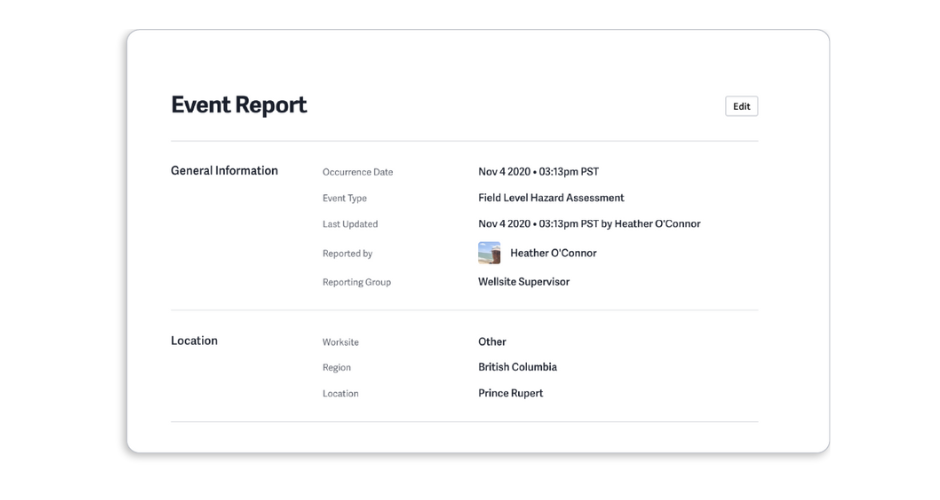
As a Manager or Admin, you will be notified via email if you have been selected to review an event within the lnUnison system. You can access this event through the link in the...
Read moreAs a Manager or Admin, you will be notified via email if you have been selected to review an event within the lnUnison system. You can access this event through the link in the...
Read moreIn order to calculate accurate metrics on your dashboard, you will need to enter your employee and contractor hours and kilometers into the lnUnison portal on a monthly basis. These values are used for...
Read moreWorksites can be set up to enter common locations to your InUnison platform. This makes Event reporting easier and more consistent for your users. Typical worksites may include Corporate Office, Shop, Yard or frequently visited...
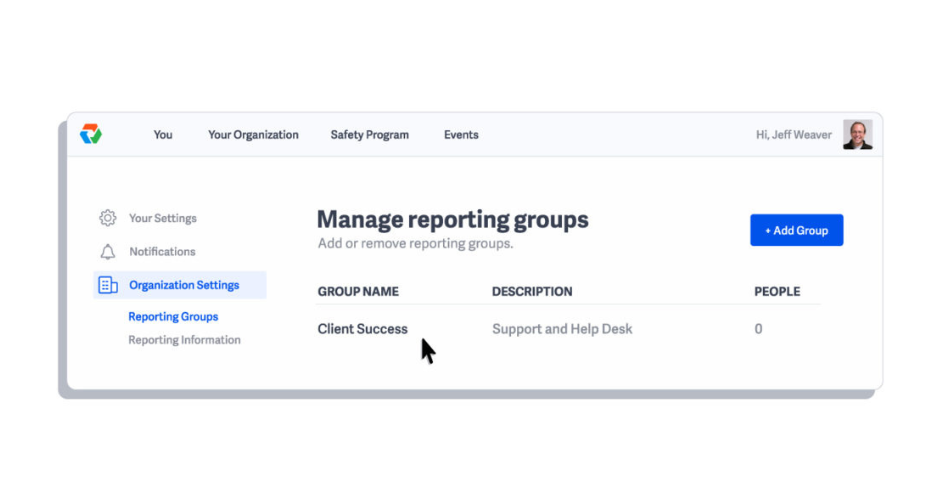
Read moreReporting Groups are created to assign users to certain groups to categorize employees. The categories are based on your organizational structure and may include groups such as Operations, Senior Management, Field Workers, etc. Step...
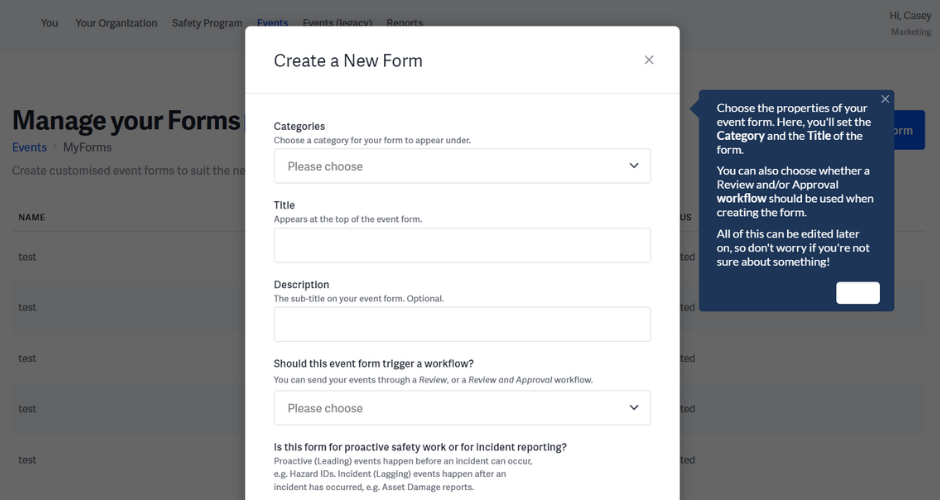
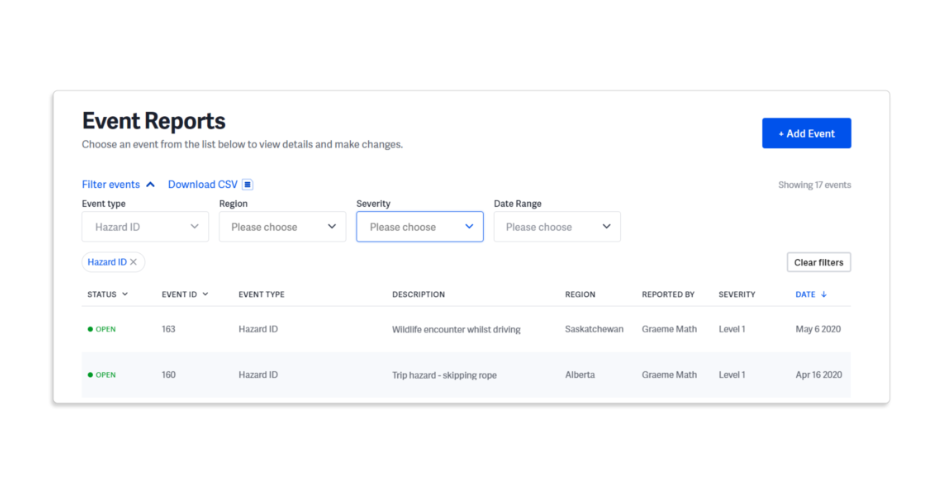
Read moreCreating an event is as simple as creating an instant message or email. With a few clicks, you can enter the details of an incident into your In Unison platform and send it to...
Read moreOnce an event has been reviewed, an Approver needs to be assigned in order to carry that event through the lnUnison workflow. Step 1 Log in to https://inunison.io and right click on the event that you...
Read moreAs a Manager or Admin, you will be notified via email if you have been selected to Approve an Event within the lnUnison system. You can access this event through the link in the...
Read more